
Setting up Gradescope takes three syncs, all done from your Blackboard course. Do them once per course, in this order, and you are ready to grade.
1Sync your course
This connects your Blackboard course to a Gradescope course. You only do it once per course.
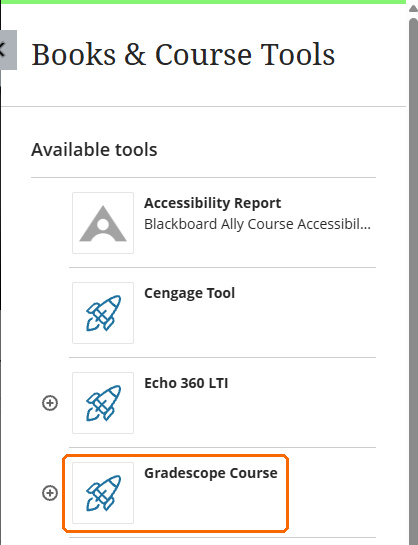
- Open your Blackboard course. In Details & Actions, find Books & Tools and select View course & institution tools.
- Select Gradescope Course.
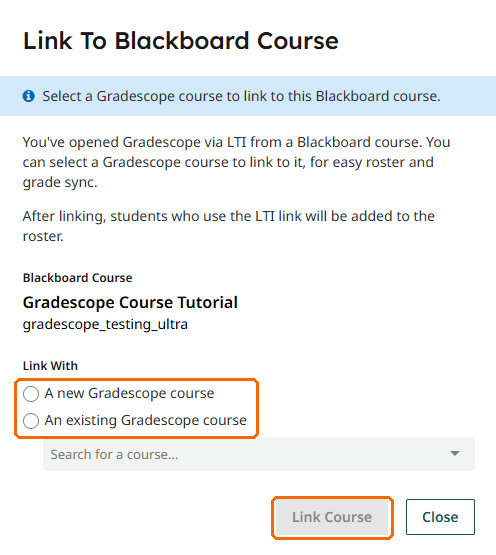
- In Link To Blackboard Course, choose A new Gradescope course, then select Link Course. Gradescope fills in your course name, number, and term for you.
Teaching several sections? Link each Blackboard course to only one Gradescope course. If your sections share one Blackboard course, they can share one Gradescope course too.
2Sync your roster
This brings your students, TAs, and co-instructors from Blackboard into Gradescope.
- In Gradescope’s left menu, select Roster.
- Select Sync Blackboard Roster.
- Decide on the email box (see below), then select Sync Roster.
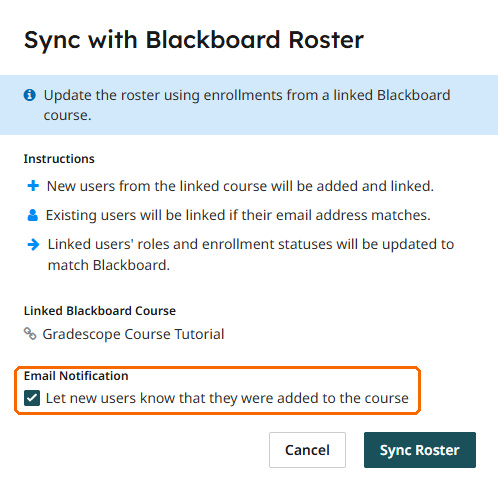
Before you sync: the box that emails students they were added is checked by default. Uncheck it if you are not ready to announce Gradescope. Your Blackboard course must be available to students for the sync to work. Sync again whenever enrollment changes.
After you sync, set your TAs’ role: TAs come into Gradescope as Instructors, with full access to course settings and grades. On the Roster page, use the Role dropdown next to each TA and choose TA. Syncing again updates roles to match Blackboard, so check them after each sync.
3Sync your assignments
Add each assignment from Blackboard, not only inside Gradescope. That is what connects it to your Blackboard gradebook. An assignment created only in Gradescope cannot post grades back.
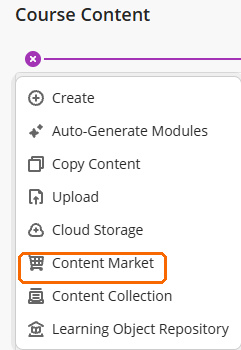
- In Course Content, select the + where you want the assignment, then Content Market.
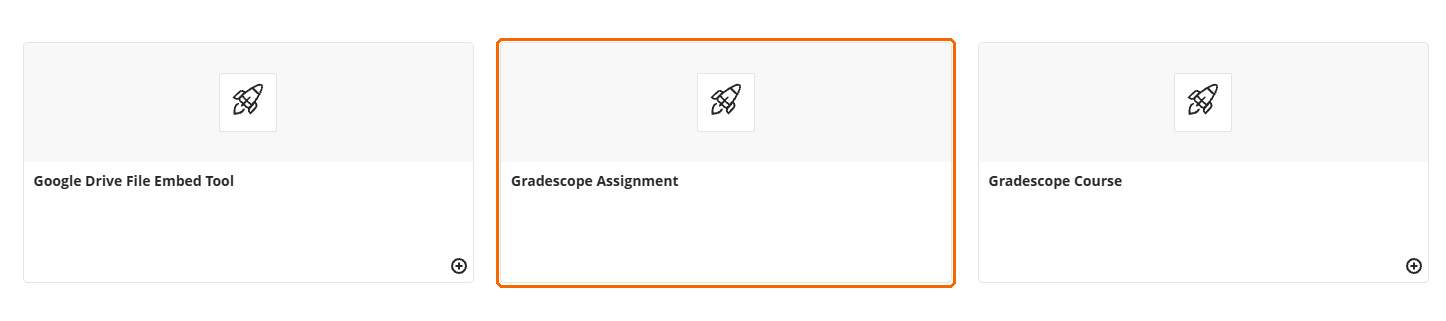
- Select Gradescope Assignment. (Not Gradescope Course, the similar tile beside it.)
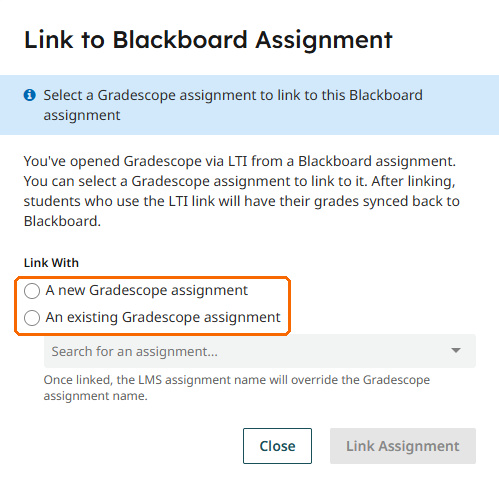
- In Link to Blackboard Assignment, choose A new Gradescope assignment (or one you already built), then select Link Assignment.
- Back in Course Content, select the new assignment link once to finish the setup.
Good to know: the new link is visible to students right away. Hide it in Course Content until you are ready to release the assignment. Once linked, the assignment’s name comes from Blackboard.
Then: grade and post
With all three syncs done, open the assignment in Gradescope and select Grade Submissions to grade question by question. When you are finished:
- Post Grades to Blackboard on the Review Grades page sends scores to your Blackboard gradebook. Only fully graded submissions post.
- Publish Grades lets students see their marked work, rubric items, and comments in Gradescope.

No Post Grades button? The assignment was not synced from Blackboard. Do step 3 for it, open the link once, and the button appears.
Stuck on a step? Gradescope Tips covers scanning, Blackboard, and browser fixes.
Webinar recordings
One-hour webinars for Syracuse University, led by Gradescope:
- Get Started with Gradescope (Fall 2024)
- STEM discipline assignments (Fall 2023)
- Non-STEM discipline assignments (Fall 2023)
- Bubble sheet assignments (Fall 2023)
Gradescope help guides by task
Full Blackboard instructions from Gradescope: Using Gradescope with Blackboard as an Instructor. Share Gradescope’s Student Hub with your class. It walks students through submitting work and viewing grades.
Want help with your first one?
Bring an exam or assignment you already use, and the Office of Institutional Effectiveness will help you decide whether Gradescope fits it and how to set it up. We can:
- Build your first assignment with you, using your own exam or problem set
- Come to a faculty or department meeting to show how colleagues in similar courses use it
- Point you to a webinar on the way you grade, such as bubble sheets or programming autograders
Where to go for other help: problems inside Gradescope, such as an upload or scanning error, go to Gradescope support at help@gradescope.com. Problems with Blackboard itself, such as signing in or a course not appearing, go to the ITS Service Center at help@syr.edu or 315.443.2677.